
Business Card Print Guide: Sizing, Bleed & CMYK Setup
Welcome to our ultimate business card print guide. Preparing your design files correctly ensures your cards come out crisp, professional, and error-free.
1. Use standard North American Dimensions
In Canada and the USA, the standard finished size for a traditional business card is 3.5 inches by 2.0 inches.
However, you should never set your design software canvas to exactly 3.5″ x 2.0″. You must always account for the Bleed Size.
- Finished Size (Cut Size): 3.5 x 2.0 inches (88.9 x 50.8 mm)
- Full Bleed Size (Document Setup): 3.75 x 2.25 inches (95.25 x 57.15 mm)
2. Understand Bleed and the “Safe Zone”
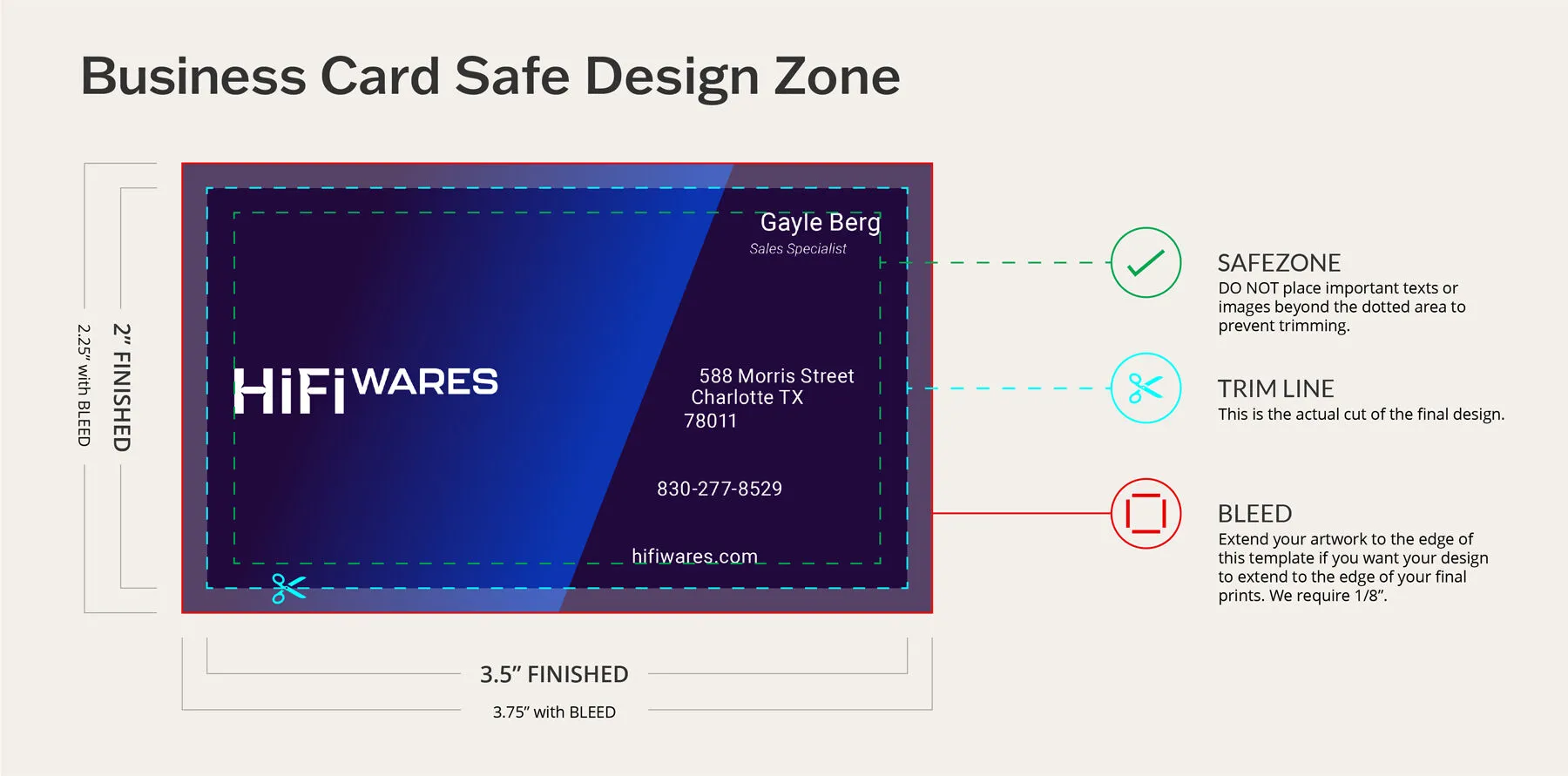
When paper is chopped in a commercial cutter, a tiny shift of less than a millimeter can happen. To prevent ugly white edges or text being cut off, think of your card in 3 Layers:
- Bleed Area (0.125 inch extra on each side): Extend your background color or background patterns all the way to the very edge of this outer boundary.
- Trim Line (The Finished Size): This is where the hydraulic blade will cut your business cards.
- Safe Zone (Inner Margin): Keep all your vital information (Logo, Name, Phone Number, QR code) at least 0.125 inch inside the trim line. If you put text too close to the edge, it risks getting sliced!
💡 Pro Tip for NFC Cards: If you are ordering NFC business cards, keep critical text and design elements slightly away from the exact center, as this is typically where the internal micro-chip sits.
3. Design in CMYK Color Mode (Never RGB)
This is the number one mistake digital designers make.
- RGB (Red, Green, Blue) is for digital screens (phones, monitors). Screens emit light.
- CMYK (Cyan, Magenta, Yellow, Black) is for physical printing. Printers mix physical ink.
If you design your business card in RGB, the colors might look neon and vibrant on your screen, but they will look dull and muddy once printed on paper.
What to do:
Before you start designing in Adobe Illustrator, Photoshop, or Canva, ensure your Document Color Mode is strictly set to CMYK.
4. Resolution: Set to 300 DPI Minimum
Never use images or logos pulled straight from a standard website (which are usually 72 DPI). For crisp, sharp typography and clean graphics, your artwork file must be saved at a minimum resolution of 300 DPI (Dots Per Inch) at actual size.
5. Quick Pre-Flight Checklist Before Uploading
Before you export your final file and upload it to PrintWhale, double-check these settings:
- [ ] Outline Your Fonts: In Illustrator, select all text and press Ctrl+Shift+O (or Cmd+Shift+O on Mac) to convert fonts to vector paths. This prevents any missing font errors.
- [ ] Save as PDF: Export your artwork as a High-Quality Print PDF or PDF/X-1a format.
- [ ] Separate Layers for Specialty Finishes: If you ordered Foil Business Cards, please create a separate page or vector layer using 100% Solid Black (K:100) to mark exactly where the shiny foil should be stamped.